
Three tools dominate local AI in 2026: Ollama, LM Studio, and Jan. All three are free. All three run the same GGUF model files. All three keep your data on your machine. The raw inference speed between them is within about 5% given the same model — they all run llama.cpp under the hood, so the engine is essentially identical.
The differences are in the interface, the API behaviour, and how much of the code you can inspect. This article skips the feature table and goes straight to the decision.
Contents
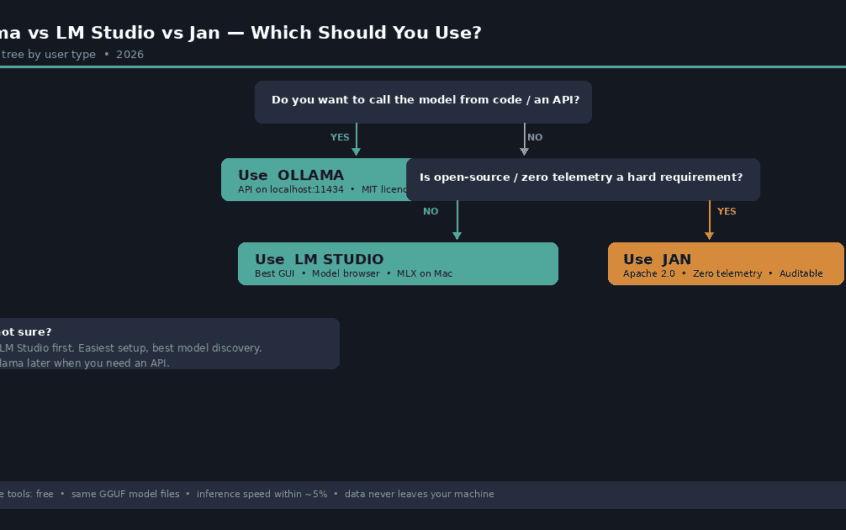
Pick Your Tool in 30 Seconds
You want to call a model from code, wire it into an IDE, or run it as a background service: use Ollama.
You want a graphical interface with no terminal and the ability to browse and download models visually: use LM Studio.
Privacy or open-source licensing is a hard requirement — you need fully auditable code and zero telemetry: use Jan.
You’re not sure yet: install LM Studio first. It has the gentlest learning curve and the best model discovery experience. You can always add Ollama later for integrations without uninstalling anything — they run side by side (just not simultaneously, since both need GPU memory).
Ollama — For Developers and Automators
Ollama runs as a background daemon the moment you start your machine. It exposes an OpenAI-compatible REST API on localhost:11434 and manages models from the command line. It’s MIT-licensed, has no telemetry, and has roughly 175,000 GitHub stars as of mid-2026 — it has become the default local backend for coding assistants, RAG pipelines, and agent frameworks.
The typical Ollama workflow:
ollama pull qwen3:8b        # download a model
ollama run qwen3:8b         # start chatting
ollama serve                # confirm the API is running on :11434
Any application written against the OpenAI Python SDK can be redirected to Ollama with one line:
client = OpenAI(base_url="http://localhost:11434/v1", api_key="ollama")Choose Ollama if:
- You’re using Continue.dev, Cline, or another IDE extension for local coding assistance
- You’re building an application that needs to call a local model from code
- You want a model running as a persistent background service that survives reboots
- You’re deploying on a Linux server or headless machine with no display
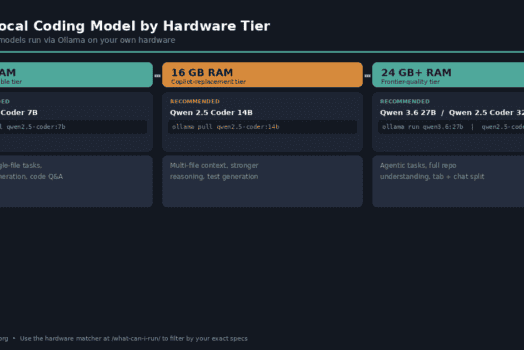
Models to start with: Browse our 7B models or 13B models — every listing includes the Ollama pull command. For coding specifically, Qwen 2.5 Coder 7B on 8GB RAM and Qwen 2.5 Coder 14B on 16GB are the current picks.
One limitation: Ollama has no built-in chat interface. You interact with it via the terminal or through a third-party frontend like Open WebUI. If you want a GUI, pair Ollama with Open WebUI, or use LM Studio for chat and Ollama for API calls — many developers run both.
LM Studio — For Anyone Who Wants a GUI
LM Studio is a desktop application with a model browser, a chat panel, and a settings UI for things like GPU layer offloading, context length, and temperature. It runs on Windows, macOS, and Linux, and on Apple Silicon it supports MLX-format models for faster inference than the GGUF equivalents.
The Discover tab connects to Hugging Face’s model hub and lets you browse, compare, and download models without leaving the app. This is the single best model discovery experience across all three tools — nothing else comes close for someone who wants to try five models in an afternoon and see which one works best for their use case.
LM Studio also runs an OpenAI-compatible API on localhost:1234, but only while the desktop app is open. This is the key difference from Ollama — LM Studio is not a daemon. If you close the app, the API goes with it.
Choose LM Studio if:
- You want to download and run models without using the terminal at all
- You’re evaluating several models and want to compare them in a chat interface before committing
- You’re on an Apple Silicon Mac and want MLX-format models for the speed advantage
- You want the most granular manual VRAM and GPU layer controls in a GUI
Models to start with: Our full model directory is filterable by size and provider — every model that runs in LM Studio has a detail page with the download name. For a first model, the 7B category has picks at every hardware tier. Use the hardware matcher first if you’re not sure which size your machine can handle.
One thing to know about privacy: LM Studio is closed-source and ships with anonymous usage analytics enabled by default. No prompt text or model outputs are sent — only app usage events. You can disable this entirely under Settings → Privacy → Send anonymous usage data. Inference itself is always fully local regardless of this setting.
Jan — For the Privacy-First and Open-Source-Required
Jan is a fully open-source desktop application under the Apache 2.0 licence. Every line of code is publicly auditable, there is no telemetry at all — not even the opt-in kind — and the application is designed to run completely offline with no network calls beyond the model downloads you initiate yourself.
It presents a ChatGPT-style interface with conversation history stored locally, and it runs an OpenAI-compatible API on localhost:1337 via its Cortex server. Jan also supports the Model Context Protocol (MCP), which matters if you’re wiring local models into agentic workflows where the model needs to call external tools.
Jan has the smallest community of the three but the fastest-growing one. Its Apache 2.0 licence invites forks and self-hosting, which has made it the default recommendation in security-conscious and enterprise contexts where using a closed-source tool is simply not permitted.
Choose Jan if:
- You need to be able to audit every line of code that runs on your machine
- You’re operating under GDPR, HIPAA, or an internal policy that prohibits closed-source AI tooling
- You want zero telemetry with no settings to check or toggle
- You’re building an internal tool for a team and need an Apache 2.0-licensed foundation you can fork and modify
Models to start with: Jan runs the same GGUF models as Ollama and LM Studio. Browse the model directory and filter by size — every model listed works with Jan. For a general-purpose starting point on 16GB RAM, Qwen3 8B is the current recommendation across all three tools.
One caveat: Jan’s API has had occasional gaps in full OpenAI-style function calling compared to Ollama. If your use case depends heavily on structured tool-calling in an agentic pipeline, test it against your specific workflow before committing.
Quick Reference
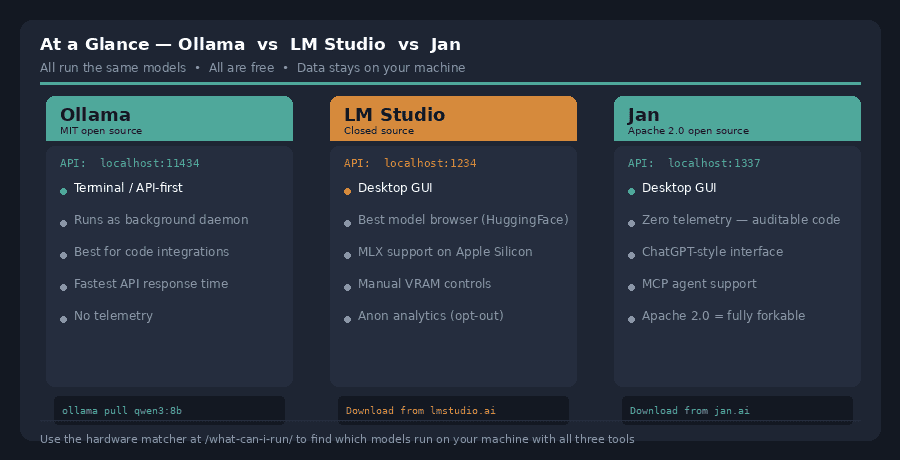
| Ollama | LM Studio | Jan | |
|---|---|---|---|
| Interface | Terminal / API | Desktop GUI | Desktop GUI |
| API port | localhost:11434 | localhost:1234 | localhost:1337 |
| Runs as daemon | ✅ Always on | App must be open | App must be open |
| Source code | MIT open source | Closed source | Apache 2.0 open source |
| Telemetry | None | Anonymous, opt-out | None |
| Apple Silicon MLX | Partial (32GB+) | ✅ Full support | Limited |
| Model browser | Registry + CLI | ✅ HuggingFace GUI | Built-in hub |
| Best for | Developers, APIs, automation | Beginners, GUI, model testing | Privacy, open-source requirements |
Can You Use More Than One?
Yes — and many serious local AI setups do. The most common combination is Ollama as the always-on API backend for IDE integrations and code, with LM Studio used separately for exploring and chatting with new models before adding them to an Ollama workflow.
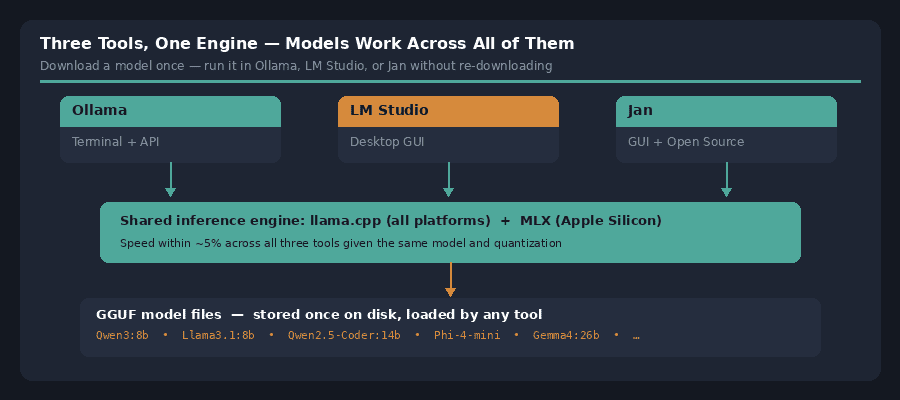
One important constraint: don’t run Ollama and LM Studio simultaneously if both are trying to use your GPU. They can’t share GPU memory at the same time, and the result is VRAM conflicts and degraded performance from both. Use one at a time for inference. Switching between them is fine — pull the same GGUF model into both and you don’t have to download anything twice.
Frequently Asked Questions
Which is fastest?
Within about 5% of each other on the same model and quantization, because they all use the same llama.cpp inference engine. The differences you’ll notice are in startup time (Ollama is fastest, daemon pre-loaded) and API response latency (Ollama again, lowest overhead). LM Studio has the most manual controls for squeezing performance from a specific GPU configuration.
Do they all run the same models?
Yes. All three run GGUF-format models, which is the standard quantised format for local AI. A model you download for Ollama is the same file that LM Studio and Jan use — you don’t have to re-download anything if you switch. Browse the full model directory for picks that work across all three tools.
Which is best for Apple Silicon?
LM Studio has the best MLX support across all Mac RAM tiers. Ollama’s MLX backend is excellent but currently activates automatically only on 32GB+ Macs. Jan’s MLX support is more limited. If you’re on a Mac and want the fastest inference with a GUI, LM Studio is the straightforward answer. See the full Apple Silicon guide for setup details.
Is LM Studio really private if it’s closed source?
Your prompts and model outputs are never sent anywhere — inference is always fully local. The closed-source concern is about the application code itself being unauditable, not about your conversations leaving your machine. If that distinction matters for your use case, Jan is the tool designed for it.
What about GPT4All?
GPT4All is a fourth option worth knowing about — it has the easiest one-click setup of all and is fully offline by default, which makes it the best entry point for absolute beginners who want to try local AI with the minimum possible configuration. It doesn’t expose an API, so it’s not useful for integrations or development work. For anything beyond personal chat, the three tools in this article are the ones to choose from.
What to Do Next
- Ready to install? Follow the getting started guide for a full walkthrough — it covers Ollama setup and first model from scratch.
- Prefer a GUI? The LM Studio guide covers download, model browsing, and the local API server step by step.
- On a Mac? See the Apple Silicon guide for RAM-tier model picks and MLX setup.
- Not sure which model to run? Use the hardware matcher — enter your RAM and it filters the full directory to what your machine can handle.
- Compare specific models: The compare tool puts any two or three models side by side on parameters, RAM requirements, context length, and benchmark scores.