
If you’ve used ChatGPT or Claude, you already know what a large language model can do. What most people don’t realize is that a smaller, still genuinely capable version of that same technology can run entirely on their own laptop — no subscription, no internet connection, no company on the other end logging what you typed.
That’s what “local AI” means: downloading an open-weight model and running it yourself, using free tools like Ollama or LM Studio. This guide covers what you actually need, how to pick your first model, and how to get something running in the next fifteen minutes.
Contents
Why Run AI Locally?
Cloud AI tools are convenient, but they come with tradeoffs that aren’t obvious until you hit them: a bill that scales with usage, a service that’s unavailable when you’re offline, and prompts that travel to someone else’s server before you get an answer back.
Local AI flips all three:
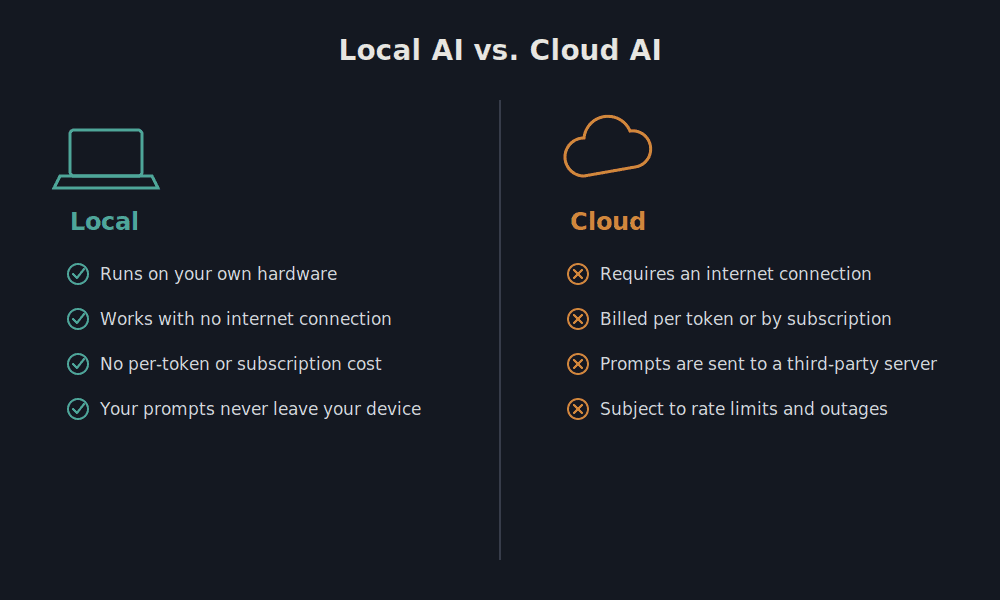
None of this makes cloud AI bad — for the largest, most capable models, nothing you can run on a laptop will match GPT-5 or Claude. But for a large share of everyday tasks — drafting, summarizing, coding help, brainstorming — a well-chosen local model gets you most of the way there, with none of the ongoing cost or connectivity requirements.
What You Actually Need
The one hardware spec that matters more than any other is RAM (or VRAM, if you’re using a dedicated GPU). A model’s size — measured in billions of “parameters,” written as 7B, 13B, 70B, and so on — determines roughly how much memory it needs to run.
Bigger models are generally more capable, but only if your hardware can hold them. A 70B model won’t run at all on a 16GB laptop; it’ll simply fail to load, or your system will grind to a halt trying to swap memory to disk.
Here’s the rough shape of it:
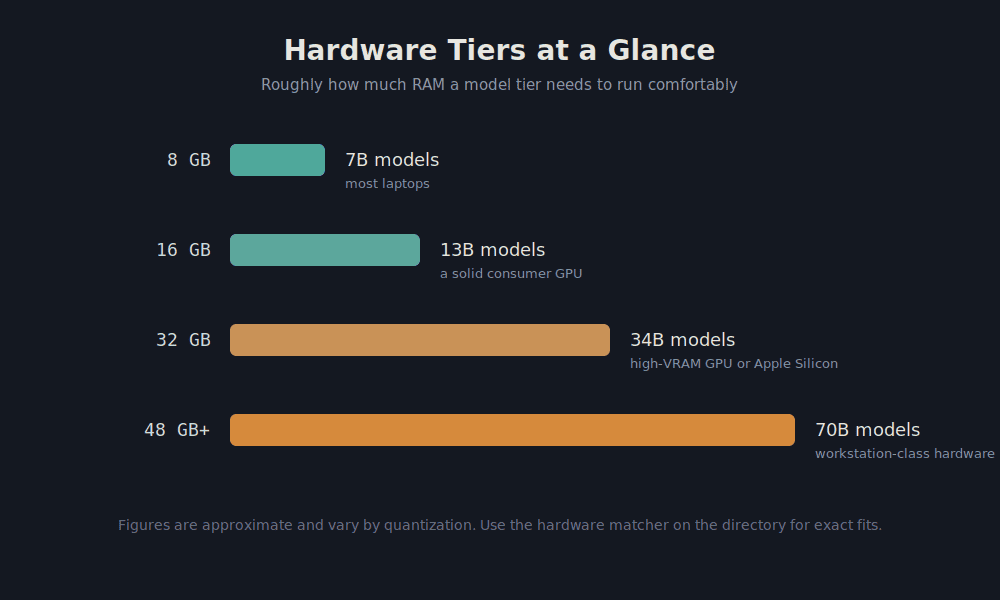
If you’re not sure exactly where your machine falls, plug your available RAM into our hardware matcher and it’ll show you every model in the directory that actually fits — no guessing required.
Choosing Your Tool: Ollama or LM Studio
You don’t run these models directly — you need an application that loads the model file and gives you a way to interact with it. The two most popular free options work differently enough that it’s worth knowing which one fits you before you start:
Ollama is command-line first. You install it, then pull and run models from a terminal with one-line commands. It’s fast, scriptable, and the default choice if you’re comfortable in a terminal or want to build something on top of it (Ollama exposes a local API other apps can call).
LM Studio is a full graphical app. You browse and download models through a UI, chat with them in a built-in interface, and adjust settings with sliders instead of flags. It’s the easier starting point if you’d rather not touch a command line at all.
Both run the same underlying model files (GGUF format), so you’re not locking yourself into one ecosystem — you can install both and switch depending on the task. Every model in this directory lists both options.
Not sure which tool to use? See the Ollama vs LM Studio vs Jan comparison.
Understanding Quantization (the Q4, Q5, Q8 Labels)
Browse any GGUF model and you’ll see filenames like Q4_K_M or Q8_0 attached to the same model name. This is quantization — a way of compressing a model’s weights so it takes up less memory and runs faster, at a small cost to precision.
You don’t need to understand the math to use this. As a practical rule:
- Q4 (4-bit) — smallest file, fastest, lowest RAM requirement. The default choice for most people, and the number our RAM estimates in this directory are based on.
- Q5 or Q6 — a middle ground. Noticeably better output quality than Q4 for a modest increase in size.
- Q8 (8-bit) — closest to the original model’s full quality, but roughly double the file size and RAM needs of Q4.
If a model feels a little off — repeating itself, missing obvious context — and you have the RAM to spare, bumping up to Q5 or Q6 is usually the first thing worth trying before assuming the model itself is a bad fit.
Matching the Model to the Task
Not every model is trained the same way, even at the same size. A few patterns worth knowing before you pick:
- General chat and writing — most base and “instruct” tuned models handle this well. This is the safest default if you’re not sure yet.
- Coding help — look for models with “coder” or “code” in the name, or check the HumanEval benchmark score on a model’s detail page. General-purpose models can code, but code-specialized ones are noticeably better at it for the same size.
- Reasoning-heavy tasks (math, multi-step logic) — larger models tend to help more here than anywhere else. If you have the RAM, this is where stepping up from 7B to 13B or beyond pays off most.
When it comes down to two similar-sized options, the MMLU and HumanEval scores on each model’s page are the fastest way to compare them side by side rather than guessing from the name alone.
Getting Your First Model Running
With Ollama:
- Download and install Ollama from ollama.com — it takes about a minute.
- Open a terminal and pull a model:
ollama pull llama3.1:8b- Once it’s downloaded, run it:
ollama run llama3.1:8b- You’ll get a prompt right in your terminal. Type a question and hit enter.
With LM Studio:
- Download LM Studio from lmstudio.ai and install it.
- Open the app and click the search/discover tab.
- Search for a model (something in the 7B–8B range is a good start), and click download.
- Once it’s downloaded, load it from the “Chat” tab and start typing.
That’s genuinely the whole process. No API keys, no billing setup, no account required for either tool.
Picking Your First Model
If you’re not sure where to start, stay in the 7B–9B range for your first model — it’s the sweet spot for running well on typical laptop hardware while still being genuinely useful for everyday tasks. Once you’ve got a feel for how it performs on your machine, you’ll have a much better sense of whether you have headroom to try something larger.
Browse our full list of 7B models to compare options, or check what’s trending right now if you’d rather start with whatever the community is currently downloading most.
If It’s Running Slowly
A model that loads but responds one word at a time, with long pauses, almost always means it’s spilling out of RAM and into disk swap. Two fixes, in order of how often they actually work:
- Close other memory-heavy apps — browsers with dozens of tabs are the usual culprit. Local models want contiguous free RAM, not RAM that’s technically “available” but fragmented across other processes.
- Drop to a smaller model or a lower quantization — if a 13B Q6 model is crawling, a 13B Q4 or a 7B Q6 will likely feel dramatically snappier for a small quality tradeoff.
If neither helps, it’s usually a genuine hardware ceiling rather than a settings problem — that’s exactly what the hardware matcher is for, so you’re not finding this out by trial and error every time.
What’s Next
Once you’ve got one model running, the natural next questions are usually “what else can I run?” and “is this actually any good?” That’s exactly what the rest of this site is built for:
- Browse the full directory — filter by provider or size
- What can I run? — check your exact hardware against every model we track
- Best 70B models — if you’ve got serious hardware and want to see the ceiling
Local AI isn’t an all-or-nothing replacement for cloud tools — it’s one more option in the toolkit, and now you know how to use it.