
Apple Silicon Macs have quietly become the best consumer hardware for running AI models locally. It’s not marketing — it’s architecture. Every M-series Mac since 2020 shares CPU, GPU, and Neural Engine memory in one unified pool, which means a 32GB MacBook Pro can run models that won’t fit on a dedicated RTX 4090 GPU. Any Mac with an M1 chip or later and 8GB of RAM can run a capable local AI model today, completely free, with no account, no subscription, and no data sent anywhere.
This guide gets you running in under ten minutes. It follows the same structure as the Windows guide — install Ollama, pick the right model for your RAM, start a conversation — with Mac-specific details and the RAM tier breakdown that matters most on Apple Silicon.
Contents
- 1 Why Apple Silicon Is Different From Every Other Local AI Platform
- 2 Step 1: Install Ollama
- 3 Step 2: Pull the Right Model for Your RAM
- 4 Step 3: Start a Conversation
- 5 What Is MLX and Do You Need to Think About It?
- 6 Using a GUI Instead of the Terminal
- 7 Performance Tips Specific to Mac
- 8 Troubleshooting
- 9 Frequently Asked Questions
- 10 What to Do Next
- 11 Hello, Nice to meet you!
Why Apple Silicon Is Different From Every Other Local AI Platform
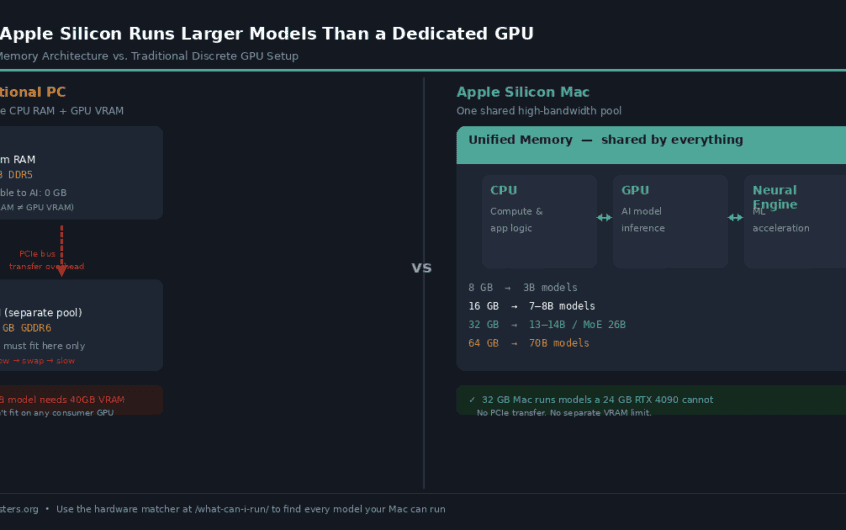
On a standard PC with a discrete GPU, your AI model has to live in two places: the model weights need to fit inside the GPU’s VRAM (typically 8–24GB on a consumer card), and everything that doesn’t fit has to get transferred across the PCIe bus from system RAM. That transfer is slow enough to make large models run at single-digit tokens per second — effectively unusable.
Apple Silicon eliminates that bottleneck entirely. The CPU, GPU, and Neural Engine all share a single high-bandwidth memory pool. A 32GB M3 MacBook Pro has 32GB available to the GPU — not a separate 8GB VRAM pool. This is why Apple Silicon is the platform driving a significant portion of the growth in local AI adoption: developers who would otherwise need a $2,000 GPU workstation can run serious models on a laptop they already own.
The practical consequence by RAM tier:

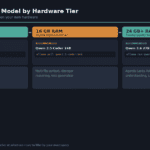
- 8GB Mac: 3B models run comfortably. 7B models technically fit but leave too little headroom for macOS and other apps.
- 16GB Mac: 7B–8B models are the sweet spot. Fast, capable, room for normal app usage alongside.
- 32GB Mac: 13B–14B models run well, and MoE models like Gemma 4 26B open up. MLX acceleration kicks in automatically at this tier.
- 64GB Mac: 70B territory. Serious workstation-class inference on a laptop.
Not sure which tier your Mac falls into? Go to Apple menu → About This Mac → Memory. That number determines your starting point.

Step 1: Install Ollama
Ollama is the fastest way to get a model running on a Mac. It handles everything: downloading models, managing GPU acceleration, and running a local API server. The installer is a standard macOS .dmg — no terminal required for setup.
- Go to ollama.com and download the macOS installer.
- Open the
.dmgand drag Ollama to your Applications folder. - Open Ollama from Applications. You’ll see the Ollama icon appear in your menu bar — that’s the local server running in the background.
- Open Terminal (find it in Applications → Utilities, or Spotlight search).
- Confirm Ollama is ready by running:
ollama --version
You should see a version number printed. If you prefer Homebrew, the one-liner is:
brew install ollamaOne thing to check: Make sure you’re on Ollama 0.19 or newer (brew upgrade ollama updates it). From version 0.19 onward, Ollama automatically switches to Apple’s MLX backend on 32GB+ Macs — a significant speed improvement at that tier that happens with no extra configuration.
Step 2: Pull the Right Model for Your RAM
Copy the command for your RAM tier into Terminal and press Enter. Ollama downloads the model and confirms when it’s ready. Download size is in brackets — plan for it if you’re on a slow connection.
8 GB Mac — Phi-4-mini or Llama 3.2 3B
macOS reserves roughly 3–4GB of your unified memory for itself and the apps running alongside it, which leaves a practical ceiling of around 4GB for a model on an 8GB Mac. That rules out 7B models for comfortable daily use and points you at the 3–4B class.
Phi-4-mini (3.8B, ~2.5GB download) is the pick if your work involves reasoning, structured output, or code. Microsoft trained it on exceptionally high-quality data and it punches well above its size — it matches Llama 3.1 8B on MMLU benchmarks while using half the memory. On an M2 MacBook Air it runs at around 28 tokens per second.
ollama pull phi4-miniLlama 3.2 3B (~2GB download) is the pick for general-purpose chat, summarisation, and writing assistance. It’s slightly faster than Phi-4-mini on straightforward tasks and handles conversation more naturally. Both are worth having on an 8GB Mac — they coexist fine on disk.
ollama pull llama3.2:3bWhat to expect at 8GB: Fast responses (50–80 tokens/second on 3B models), solid everyday tasks, occasional gaps on complex multi-step reasoning. These are real, useful tools — not demos. They will not match a 14B model on hard problems, but for summarising a document, drafting an email, or explaining a piece of code they’re genuinely capable.
16 GB Mac — Qwen3 8B
16GB is the comfortable tier for 7B–8B models on Apple Silicon. You have enough room for the model, macOS, a browser, and an IDE all running simultaneously — this is a practical daily-driver setup for local AI.
The recommended starting model for 16GB Macs as of mid-2026 is Qwen3 8B. It’s a 5GB download, runs well within the 16GB headroom, and handles general chat, summarisation, coding assistance, and writing tasks better than any other model at its size class.
ollama run qwen3:8bMistral 7B and Llama 3.1 8B are solid alternatives with more community tooling built around them. If you plan to use Continue.dev, Cline, or other IDE integrations, either is well-supported. On a 16GB Mac, 8B models typically run at 20–35 tokens per second — fast enough that responses feel immediate.
ollama pull mistral:7b
ollama pull llama3.1:8b
What to expect at 16GB: The jump from a 3B to an 8B model is the largest quality step in the local AI stack. You’ll notice it immediately in longer outputs, multi-step tasks, and anything involving reasoning across a full document. This is where local AI starts feeling like a genuine tool rather than a compromise.
32 GB Mac — Qwen 2.5 14B or Gemma 4 26B
32GB is the tier where local AI becomes difficult to distinguish from a cloud API on typical workloads. At this point Ollama’s MLX backend activates automatically, which pushes generation speed to around 40–60 tokens per second on 14B models — well above the threshold where responses feel instant.
Qwen 2.5 14B is the straightforward starting point. It fits comfortably, runs fast, handles multi-file coding tasks well, and produces noticeably better outputs than any 8B model on complex reasoning, structured generation, and long-form writing.
ollama pull qwen2.5:14bPhi-4 14B by Microsoft is a strong alternative for analytical and STEM-heavy workloads. It’s dense knowledge per parameter and excellent on reasoning tasks, though it’s weaker than Qwen on long-context retrieval and tool-calling if you plan to use an AI agent setup.
ollama pull phi4:14bIf you want to try a larger model, Gemma 4 26B fits a 32GB Mac at Q4 quantization. It’s a Mixture-of-Experts architecture with only around 3.8 billion active parameters per token, which keeps it fast despite the larger total parameter count. It also supports multimodal input — images, documents, diagrams — which no 14B model at this tier matches.
ollama pull gemma4:26bUse the hardware matcher to see every model that fits your specific Mac — it filters the full directory by RAM and shows download sizes, context lengths, and Ollama commands for each result.
Step 3: Start a Conversation
Once the download finishes, run the model:
ollama run [model-name]For example:
ollama run qwen3:8bYou’ll see >>> Send a message. Type your prompt and press Enter. The first response takes a few seconds while the model loads into unified memory — every response after that starts immediately. When you’re done, type /bye or press Ctrl+D to exit.
Ollama keeps the model loaded in the background after you exit, so the next time you run it the startup delay is gone. To fully unload a model from memory, click the Ollama icon in the menu bar and select the model to stop it.
What Is MLX and Do You Need to Think About It?
MLX is Apple’s open-source machine learning framework, designed specifically for Apple Silicon’s unified memory architecture. It runs 15–40% faster than the older llama.cpp Metal backend for steady-state token generation, with an even larger speed advantage on the newest M4 chips.
The short answer for most users: you don’t need to think about it at all. From Ollama 0.19 onward, if you’re on a 32GB or larger Mac, MLX activates automatically. There’s no toggle to flip — update Ollama and it happens.
If you’re on 8GB or 16GB: These Macs still use the Metal path. They don’t get slower — they just don’t yet get the MLX speed boost. This is expected to expand to lower-RAM Macs in a future Ollama release.
If you want maximum performance and are comfortable with Python: You can also use MLX-LM directly — Apple’s command-line tool that runs MLX-format models without Ollama. It’s faster still and supports fine-tuning, but it’s a more technical setup. The Ollama path covers the vast majority of use cases.
Using a GUI Instead of the Terminal
If you’d prefer a graphical interface to the terminal workflow, LM Studio is the Mac-native option. It runs on top of the same Ollama/MLX backends and adds a chat interface, a model browser, and a settings panel for things like context length and temperature.
In LM Studio on Apple Silicon, look for models tagged MLX in the Discover tab — these are format-optimised versions of popular models that run 20–30% faster than their GGUF equivalents on M-series hardware. When an MLX variant exists for a model you want to run, choose it.
Performance Tips Specific to Mac
Close memory-heavy apps before running large models. Chrome tabs, Docker containers, and Xcode builds all compete with the model for unified memory. On a 16GB Mac running an 8B model, closing Chrome can be the difference between smooth responses and macOS forcing the model into swap — which makes inference noticeably slower.
Q4 quantization is the sweet spot on Apple Silicon. Ollama downloads Q4 by default, which is right — the quality loss from 8-bit to 4-bit is smaller than it sounds on the newer Qwen and Gemma model families, and the memory savings allow you to run a meaningfully larger model. Don’t drop to Q2 unless you’re severely RAM-constrained; the quality drop is significant.
The right model is the largest that fits comfortably — not the largest that technically loads. A model that’s using 95% of your unified memory will cause macOS to evict other processes and occasionally swap, slowing everything down. Leave a 3–4GB buffer above what the model uses.
Thermal management on sustained tasks. For long generation sessions or anything involving agent tasks (file reading, code writing, iteration), sustained GPU load can trigger thermal throttling on MacBooks. A fan control utility or simply keeping the laptop on a hard flat surface helps.
Troubleshooting
First response is very slow, then speeds up. Normal. The first prompt loads the model weights into unified memory. Every subsequent prompt in the same session starts immediately. If you quit Ollama and relaunch, the load happens again.
Model keeps getting slow after a period of inactivity. macOS’s memory pressure system can evict a model from unified memory when other apps need RAM. The model reloads on the next prompt. This is normal macOS behaviour, not a bug. Reducing the number of background apps helps.
Out of memory error when pulling a model. The model is too large for your RAM tier. Drop to a smaller size (e.g. qwen3:8b instead of qwen3:14b) or use a lower quantization tag (e.g. qwen2.5:14b-instruct-q4_K_M).
Ollama process won’t quit. Click the Ollama icon in the menu bar and select Quit. If the menu bar icon doesn’t respond, open Terminal and run: pkill ollama
Model pulls slowly or stalls. Ollama downloads from Hugging Face CDN. Pause and resume by pressing Ctrl+C and re-running the same ollama pull command — it resumes from where it stopped.
Frequently Asked Questions
Does this work on an Intel Mac?
Technically yes — Ollama supports Intel Macs and llama.cpp runs on them. But Intel Macs have a separate CPU and GPU with different memory pools, so they don’t get the unified memory advantage. For any practical interactive AI use, you’ll see a significant performance difference compared to Apple Silicon. If you’re on an Intel Mac, expect CPU-only inference speeds (4–8 tokens per second on a 7B model) rather than the 20–40 tokens per second Apple Silicon delivers.
Is the data private? Does anything get sent to Apple?
Yes, fully private. Ollama and the models run entirely on your machine. No prompts, responses, or model outputs leave your Mac. Apple is not involved in inference at all — Ollama is an open-source tool unaffiliated with Apple, and MLX is Apple’s open-source ML framework, not a cloud service.
Will running AI drain my battery?
Yes, noticeably — GPU inference draws significant power. On a MacBook, you’ll see battery life drop to roughly 2–4 hours of active inference depending on model size and the Mac generation. Plugging in is recommended for extended sessions. The model itself draws no power when not generating a response.
Can I use these models with VS Code or other tools?
Yes. Ollama runs a local API on localhost:11434 that any OpenAI-compatible tool can use. Continue.dev (VS Code extension) connects directly — set the provider to Ollama and it works with any pulled model. Our local coding models guide covers the full IDE integration setup.
What’s the difference between Ollama and LM Studio on Mac?
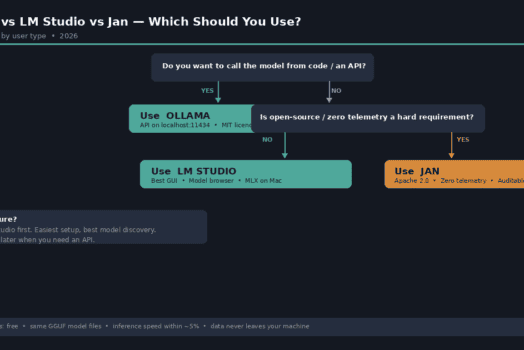
Both run the same models. Ollama is terminal-first and runs as a background service with an API — better for integrations and automation. LM Studio is a full desktop GUI — better if you prefer a visual interface and don’t plan to use the API. Many people use both: Ollama for IDE integrations, LM Studio for exploratory chat with new models.
What to Do Next
- Find more models for your exact RAM: The hardware matcher filters the full directory by your RAM and shows Ollama commands, download sizes, and context lengths for every compatible model.
- Using this for coding? See the best local coding models guide for the full breakdown of which models work best by tier, plus Continue.dev and Cline setup.
- Want a visual interface? The LM Studio guide covers the GUI alternative — including how to use MLX-format models for faster speeds on Apple Silicon.
- Compare specific models: Use the compare tool to put any two or three models from the directory side by side on specs, context length, and benchmark scores.