
If you want to run AI models privately on your own machine — no API keys, no subscription, no data leaving your computer — LM Studio is the most accessible way to do it in 2026. It wraps a powerful local inference engine inside a clean desktop application, so you can go from zero to chatting with a 7-billion-parameter model in under ten minutes, without touching a terminal.
This guide walks through everything: installation, picking the right model for your hardware, your first conversation, and the local API server for developers who want to go further.
Contents
- 1 What Is LM Studio?
- 2 What You Need Before You Start
- 3 Installing LM Studio
- 4 Finding and Downloading Your First Model
- 5 Your First Conversation
- 6 Getting Better Performance
- 7 The Local API Server
- 8 LM Studio vs Ollama: Which Should You Use?
- 9 Frequently Asked Questions
- 10 What to Do Next
- 11 Hello, Nice to meet you!
What Is LM Studio?
LM Studio is a free desktop application built by Element Labs that lets you download, manage, and run open-source large language models entirely on your own hardware. The current stable release is version 0.4.16 (June 2026).
Under the hood it runs on two inference engines depending on your platform: llama.cpp for Windows, Linux, and Intel/AMD Mac, and Apple’s MLX framework on Apple Silicon Macs. You don’t choose between them manually — LM Studio picks the right one for your hardware automatically, and will suggest MLX-format model builds when they exist for your chip.
The core application is free for personal use. A paid tier exists for teams needing features like SSO and private model gating, but everything covered in this guide is available on the free plan.
What You Need Before You Start
LM Studio runs on Windows 10+, macOS 12+, and most mainstream Linux distributions. The honest constraint is RAM and VRAM, not the OS.
| Model Size | Minimum RAM | Recommended | Fits in |
|---|---|---|---|
| 1–3B | 4 GB | 8 GB | Almost anything |
| 7B | 8 GB | 16 GB | Most laptops made in the last 4 years |
| 13–14B | 16 GB | 32 GB | Mid-range desktops, M-series Macs |
| 34B | 32 GB | 64 GB | High-end workstations |
| 70B+ | 64 GB+ | 128 GB+ | Dedicated AI hardware or multi-GPU setups |
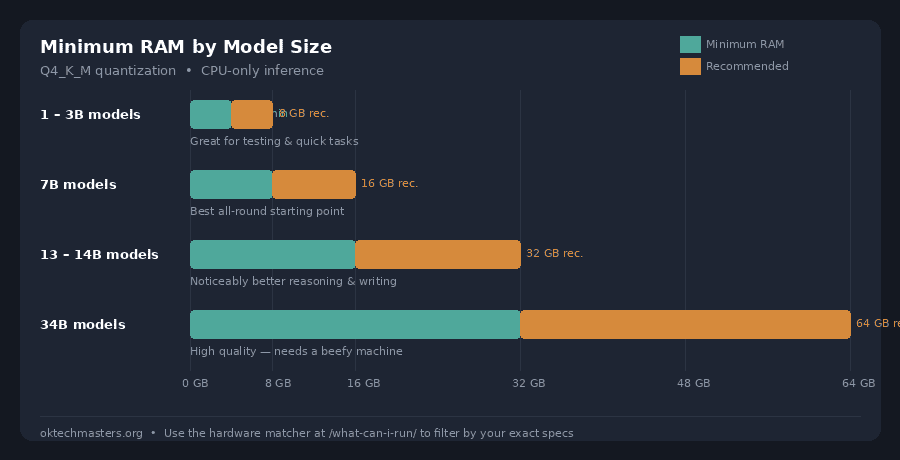
These figures are for CPU-only inference with a Q4 quantized model. If you have a discrete GPU, LM Studio can offload layers to it and significantly improve speed — more on that in the performance section below.
Not sure what models your hardware can actually run? Use the hardware matcher to get a filtered list based on your RAM.
Installing LM Studio
- Go to lmstudio.ai and download the installer for your platform.
- Run the installer. On Windows, accept the UAC prompt. On Mac, drag to Applications as usual.
- On first launch, LM Studio will detect your hardware and configure the appropriate inference backend automatically. On Apple Silicon, it will confirm that MLX is available; on NVIDIA GPUs, it will confirm CUDA.
No Python environment, no package manager, no dependencies to install separately.
One thing to check after install: Go to Settings → Runtime and confirm the llama.cpp or MLX engine version shown there. LM Studio ships engine updates independently of the app itself — if a model fails to load, a runtime update is often the fix.
Finding and Downloading Your First Model
Open the Discover tab. This is a built-in browser connected to Hugging Face’s model hub, filtered to show only models compatible with LM Studio’s supported formats (GGUF and MLX).
How to pick the right model for your hardware:
- If you have 8 GB RAM, start with a 7B model at Q4_K_M quantization. This is the sweet spot — enough capability for most tasks, low enough RAM to leave headroom for the operating system and other apps. See the 7B models page for curated picks.
- If you have 16 GB RAM, a 13B or 14B at Q4_K_M runs well and noticeably improves output quality for writing and reasoning tasks.
- If you’re on an Apple Silicon Mac, look for an MLX-format variant of your chosen model first. These often outperform the equivalent GGUF build on the same chip.
The search bar in Discover accepts model names (search “Llama”, “Qwen”, “Gemma”) or you can browse by category. Click a model to see its variants, sizes, and download sizes. The Q4_K_M tag means 4-bit quantization, mixed-precision — it’s the best quality-to-size tradeoff for most use cases.
Click Download. Depending on your connection speed and model size, a 7B model typically downloads in 5–15 minutes. Downloads resume if interrupted.
Your First Conversation
- Go to the Chat tab.
- Click Select a model to load in the top bar and choose the model you downloaded.
- Wait 10–30 seconds for it to load into memory. A green indicator confirms it’s ready.
- Type in the message box and press Enter.
At this point you have a fully private AI assistant running on your own hardware. No network requests leave your machine during inference. The conversation history stays local.
Useful settings in the Chat tab:
- System Prompt: Sets the assistant’s role and tone. For general use, leaving it blank is fine. For coding, try: “You are a precise technical assistant. Always include working code examples. Prefer Python unless specified otherwise.”
- Context Length: How many tokens the model can “remember” within a conversation. Longer context uses more RAM. The default is fine to start.
- Temperature: Controls randomness. Lower values (0.1–0.4) for factual, consistent responses. Higher values (0.7–1.0) for creative writing.
Getting Better Performance
If responses feel slow, two settings have the biggest impact.
GPU Offloading (Windows and Linux with a discrete GPU)
In Settings → Model, you’ll see a GPU Layers slider. Each layer you move to the GPU speeds up inference significantly. Set this as high as your VRAM allows — LM Studio will show a warning if you exceed it. A common setup for 8 GB VRAM with a 7B model is to offload all layers to the GPU, which can push generation speed from ~10 tokens/second on CPU to 40–80 tokens/second.
Apple Silicon (M1/M2/M3/M4)
On Apple Silicon, the GPU and unified memory are shared — “VRAM” and “RAM” are the same pool. This is why a base M2 MacBook Air with 16 GB unified memory can run a 13B model faster than a Windows laptop with 16 GB RAM and a discrete 4 GB GPU. LM Studio handles this automatically when an MLX-format model is loaded.
If a model feels too slow: Drop down one quantization level (Q4 → Q3, or try a smaller model). A well-quantized smaller model often gives better practical results than a larger model running half on CPU.
The Local API Server
LM Studio exposes an OpenAI-compatible HTTP API on localhost:1234. Any application that works with the OpenAI API can be pointed at LM Studio’s local server instead — with no code changes beyond the base URL.
To enable it:
- Go to Settings → Server.
- Toggle the server on.
- The status bar shows
Listening on port 1234.
The API is off by default and must be enabled manually each session (or configured to start automatically in the same Settings panel).
A quick test from the terminal:
curl http://localhost:1234/v1/chat/completions \
  -H "Content-Type: application/json" \
  -d '{
    "model": "local-model",
    "messages": [{"role": "user", "content": "Hello, are you running locally?"}]
  }'
The model field value doesn’t matter for routing — LM Studio serves whichever model is currently loaded in the Chat tab.
This unlocks LM Studio as a private backend for any tool that supports a custom OpenAI base URL — code editors with AI extensions, local RAG pipelines, automation workflows, and more. The API is best suited for personal development use rather than production serving; for production, Ollama’s API is more mature.
MCP (Model Context Protocol): Version 0.3.17 onward includes an MCP client in the Developer tab. This lets a loaded model call external tools — read local files, query a database, run a web search — without leaving your machine. If you’re building local AI agents, this is the feature to explore next.
LM Studio vs Ollama: Which Should You Use?
Both tools run the same GGUF model files and serve the same OpenAI-compatible API. The difference is interaction style.
| LM Studio | Ollama | |
|---|---|---|
| Interface | Desktop GUI | Terminal / API-first |
| Setup | GUI installer | Single shell command |
| Model management | Point-and-click Discover tab | ollama pull <model> |
| API | localhost:1234 | localhost:11434 |
| Apple Silicon | MLX + GGUF | GGUF only |
| Best for | Getting started, evaluating models, non-technical users | Headless servers, automation, CI pipelines |

The practical answer for most people: start with LM Studio. If you find yourself wanting to run models as a background service, script model switching, or deploy on a headless server, switch to Ollama for those specific tasks. Many people use both — LM Studio for exploration and chat, Ollama for local API integrations.
See our best local LLMs guide for a full breakdown of which models work well in both tools.
Frequently Asked Questions
Is LM Studio really free?
The core desktop application is free for personal use. The paid tier adds enterprise features (SSO, private model hosting, team collaboration) that most individual users don’t need.
Does LM Studio work offline?
Once a model is downloaded, yes — inference runs entirely offline. You only need a network connection for the initial model download via the Discover tab.
Can I run multiple models at once?
You can have multiple models downloaded, but only one loaded into memory at a time on a single LM Studio instance. Version 0.4.x added parallel request batching for the loaded model, which helps if you’re hitting the API from multiple clients simultaneously.
How much disk space do models take?
A 7B model at Q4_K_M quantization is roughly 4–5 GB. A 13B is around 8 GB. A 70B is around 40 GB. Plan for at least 50 GB of free disk space if you want to experiment with several models.
What happens to my models after a LM Studio update?
Downloaded models are stored separately from the application files and persist across updates. They live in ~/LM Studio/models/ on Mac and %USERPROFILE%\.cache\lm-studio\models on Windows.
What to Do Next
- Not sure which model to download first? Use the hardware matcher — enter your RAM and get a filtered list of what will actually run on your machine.
- Want to compare specific models? The compare tool lets you put two or three models side by side on specs, benchmark scores, and context length.
- Looking for the best options in a specific size range? Browse by size: 7B models · 13B models · 70B models
- Ready to go deeper? See Getting Started with Local AI for a broader overview of the local LLM ecosystem — including when LM Studio is and isn’t the right tool for what you’re building.