
“Will this run on my computer?” is the single most common question anyone new to local AI has — and the honest answer is always “it depends on more than just one number.” This guide goes past the basic RAM tiers and into what’s actually determining whether a model runs, and how fast.
Contents
Two Paths: RAM (CPU) or VRAM (GPU)
Every model needs to be loaded into memory to run, but there are two different kinds of memory involved, and which one matters most depends on your hardware:
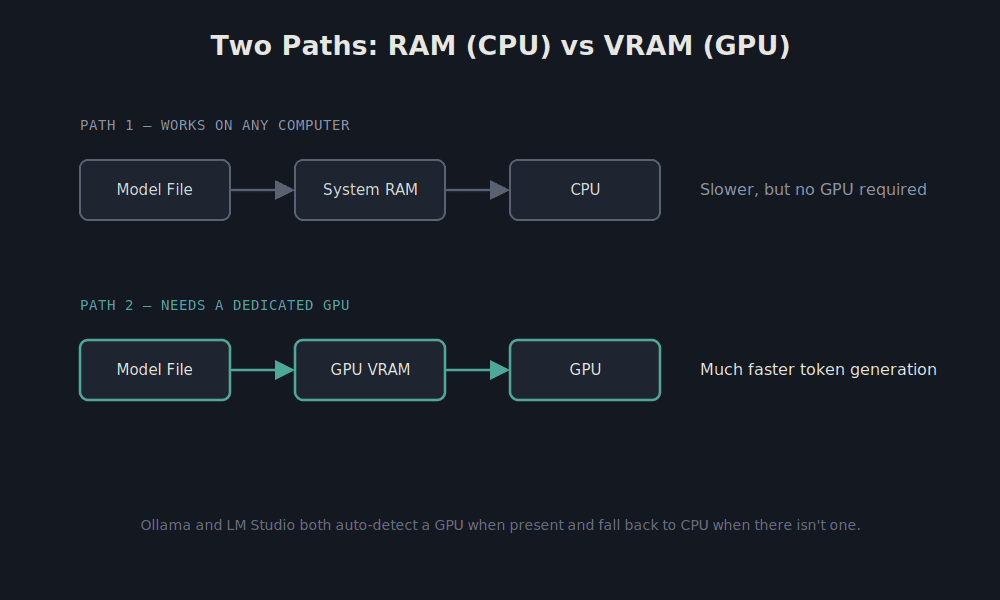
If you have a dedicated GPU with enough VRAM, both Ollama and LM Studio will use it automatically — you don’t need to configure anything. If you don’t have a GPU, or its VRAM is too small for the model, both tools fall back to your system RAM and CPU instead. It’ll still work; it’ll just generate text more slowly, since a CPU processes it sequentially where a GPU processes many calculations in parallel.
This is also why two people can install the exact same model and have completely different experiences — one’s running on a GPU, the other on CPU alone.
How to Check Your Own Hardware
Before you can match yourself to a model, you need to know what you’re working with:
Windows — Right-click the taskbar → Task Manager → Performance tab. RAM is listed under “Memory.” If you have a GPU, it’s listed separately with its own VRAM amount.
Mac — Apple menu → About This Mac. RAM is listed directly. On Apple Silicon Macs (M1/M2/M3/M4), there’s no separate VRAM — see the note on unified memory below.
Linux — Run free -h in a terminal for RAM. For GPU VRAM, nvidia-smi (NVIDIA) shows it directly, or rocm-smi for AMD cards.
Once you know your number, our hardware matcher turns it directly into a list of what fits — no math required from here on.
The Real Formula: It’s Not Just Model Size
Every model listing shows a single RAM number, but that figure is really three things added together:
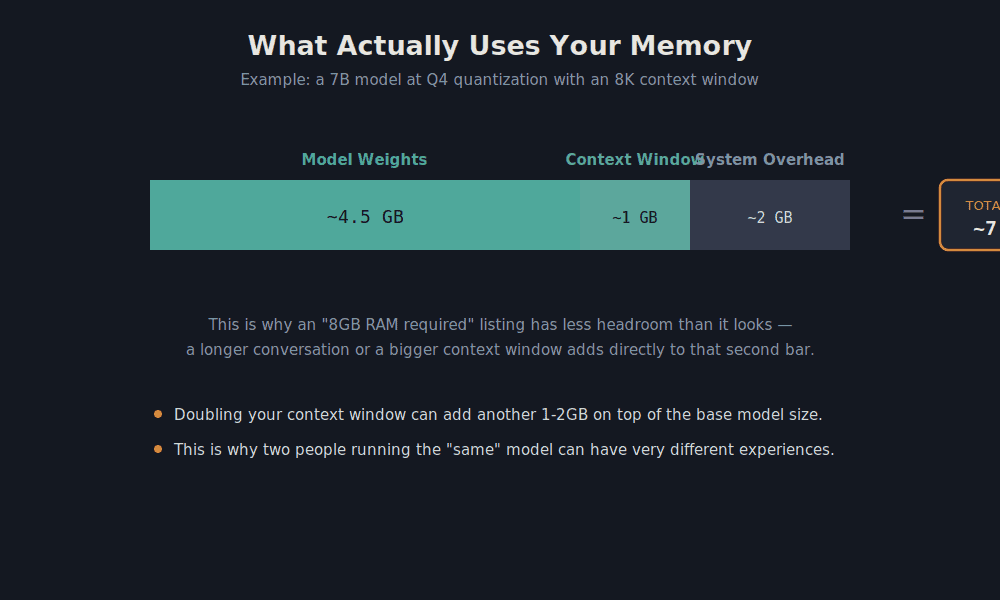
The model weights are fixed — that’s the download size, roughly set once you pick a model and quantization level. The context window, though, scales with how much conversation history or document text you feed the model at once. A short back-and-forth chat barely touches it; pasting in a long document to summarize can add noticeably to memory use in the same session.
This is the detail that trips people up: a model that fits comfortably for quick questions can start swapping to disk the moment you paste in a 10-page document, because the context window just grew several times over.
Can I Run Local AI Without a GPU?
Yes — plenty of people do, and it’s a completely normal setup, not a compromise you have to apologize for. CPU-only inference works on any modern laptop with enough RAM; you’re trading speed for accessibility, and the tradeoff is often smaller than people expect for models around 7B.
Practical expectations for CPU-only:
- 7B models — usable, generally readable response speed on a recent CPU
- 13B models — noticeably slower, still workable for non-time-sensitive tasks
- 34B+ models — technically possible if you have enough RAM, but slow enough that most people find it frustrating for interactive chat
If speed matters more than model size, a smaller model on CPU will almost always feel better to use than a larger one crawling through the same hardware.
Apple Silicon: A Different Case
M-series Macs (M1 through M4) don’t split RAM and VRAM the way a Windows PC with a discrete GPU does — memory is unified and shared between the CPU and GPU cores. This actually works in your favor for local AI: a Mac with 32GB of unified memory can dedicate a large share of that directly to a model, and Apple Silicon’s GPU cores accelerate inference automatically through Metal, without any separate VRAM requirement to worry about.
As a rough guide, treat your Mac’s total unified memory the same way you’d treat combined RAM+VRAM on a PC — a 16GB M-series Mac comfortably handles 7B-class models, and 32GB+ opens up the 13B–34B range.
The Middle Ground: Partial GPU Offloading
If your GPU has some VRAM but not quite enough for a model on its own, you’re not stuck choosing between “fits” and “doesn’t fit.” Both Ollama and LM Studio support partial offloading — splitting the model so part of it runs on your GPU and the rest runs on CPU/RAM.
This won’t be as fast as running the whole thing on GPU, but it’s meaningfully faster than CPU alone, and it’s often the difference between “unusably slow” and “perfectly fine for daily use.” In LM Studio, this shows up as a GPU offload slider when you load a model — worth experimenting with rather than assuming it’s all-or-nothing.
Quick Answers
Can I run a 70B model on 16GB of RAM?
No. 70B-class models need roughly 45-50GB at standard quantization — 16GB isn’t close, regardless of CPU or GPU.
Does my old GPU still work?
Usually yes, as long as it has enough VRAM for the model you want and reasonably current drivers. Age matters much less than raw VRAM capacity — a 6GB card from several years ago will still comfortably run a 7B model.
What’s the minimum to run anything useful?
8GB of system RAM will run small 7B models at Q4 quantization. Below that, you’re limited to significantly smaller, less capable models.
Do I need to buy a new GPU to get started?
No — start with what you have. CPU-only or an older GPU is a completely reasonable way to learn the tools and find out what size model you actually want, before spending anything on hardware.
Will closing other apps actually free up enough memory to matter?
Often, yes. Browsers with many tabs open are frequently the biggest unexpected memory user on a system — closing them before loading a model is a genuinely effective first troubleshooting step, not just a formality.
Where to Go From Here
The fastest way to stop estimating and start knowing is the hardware matcher — enter your actual RAM and see the real list, not a rule of thumb.
If you’re specifically hardware-constrained, 7B models are the most forgiving starting point across almost any setup. If you’ve got room to spare, 70B models show what’s possible at the top end.